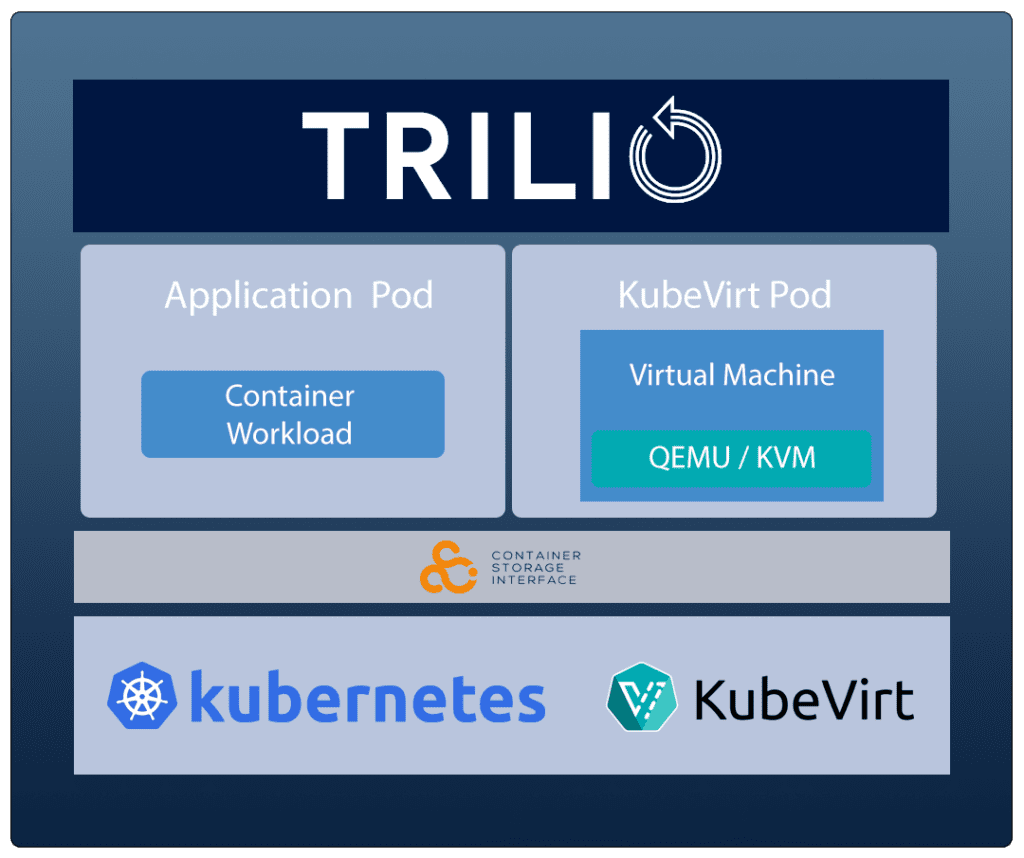


Install KubeVirt
					% export VERSION=$(curl -s https://storage.googleapis.com/kubevirt-prow/release/kubevirt/kubevirt/stable.txt)
% echo $VERSION
v1.1.0

% kubectl create -f https://github.com/kubevirt/kubevirt/releases/download/${VERSION}/kubevirt-operator.yaml
namespace/kubevirt created
customresourcedefinition.apiextensions.k8s.io/kubevirts.kubevirt.io created
priorityclass.scheduling.k8s.io/kubevirt-cluster-critical created
clusterrole.rbac.authorization.k8s.io/kubevirt.io:operator created
serviceaccount/kubevirt-operator created
role.rbac.authorization.k8s.io/kubevirt-operator created
rolebinding.rbac.authorization.k8s.io/kubevirt-operator-rolebinding created
clusterrole.rbac.authorization.k8s.io/kubevirt-operator created
clusterrolebinding.rbac.authorization.k8s.io/kubevirt-operator created
deployment.apps/virt-operator created

% kubectl create -f https://github.com/kubevirt/kubevirt/releases/download/${VERSION}/kubevirt-cr.yaml
kubevirt.kubevirt.io/kubevirt created

% kubectl get kubevirt.kubevirt.io/kubevirt -n kubevirt -o=jsonpath="{.status.phase}"
Deploying
## after ~5 min
% kubectl get kubevirt.kubevirt.io/kubevirt -n kubevirt -o=jsonpath="{.status.phase}"
Deployed
The default node pool VMs (worker nodes) in Azure do not have Intel virtualization extensions (VT-x) enabled. When trying to create a guest VM, you will see that the kubevirt VM pod will be unschedulable with the following error message:
0/3 nodes are available: 3 Insufficient devices.kubevirt.io/kvm.
					% kubectl -n kubevirt-demo get vms
NAME     AGE   STATUS               READY
testvm   80s   ErrorUnschedulable   False

% kubectl -n kubevirt-demo get events
LAST SEEN   TYPE      REASON             OBJECT                           MESSAGE
66s         Normal    SuccessfulCreate   virtualmachine/testvm            Started the virtual machine by creating the new virtual machine instance testvm
66s         Normal    SuccessfulCreate   virtualmachineinstance/testvm    Created virtual machine pod virt-launcher-testvm-tbccc
66s         Warning   FailedScheduling   pod/virt-launcher-testvm-tbccc   0/3 nodes are available: 3 Insufficient devices.kubevirt.io/kvm. preemption: 0/3 nodes are available: 3 No preemption victims found for incoming pod..
To fix this, you need to create a new node pool using an Azure VM flavor that has VT-x extensions. (those from the Ds_v3 series all have them)
					% az aks nodepool add \
--resource-group SA-AKS-Demo \
--cluster-name sa-az-cluster-3 \
--name nested \
--node-vm-size Standard_D4s_v3 \
--labels nested=true \
--node-count 3
Launch guest KubeVirt VM
Follow the official KubeVirt guide here:
					wget https://kubevirt.io/labs/manifests/vm.yaml
kubectl create ns kubevirt-demo
kubectl -n kubevirt-demo apply -f vm.yaml

% kubectl -n kubevirt-demo get vms
NAME     AGE   STATUS    READY
testvm   43s   Stopped   False

% virtctl -n kubevirt-demo start testvm
VM testvm was scheduled to start

% kubectl -n kubevirt-demo get vms
NAME     AGE   STATUS    READY
testvm   28m   Running   True

% virtctl -n kubevirt-demo console testvm
Successfully connected to testvm console. The escape sequence is ^]

login as 'cirros' user. default password: 'gocubsgo'. use 'sudo' for root.
testvm login: cirros
Password: gocubsgo

$ pwd
/home/cirros
$ cat /etc/os-release
NAME=Buildroot
VERSION=2015.05-g31af4e3-dirty
ID=buildroot
VERSION_ID=2015.05
PRETTY_NAME="Buildroot 2015.05"
$
Disconnect from the virtual machine console by typing: ctrl+].
Launch guest KubeVirt VM with persistent disk hard drive
The example in the KubeVirt guide only uses an ephemeral disk (containerdisk) and therefore contains no stateful data in order to demonstrate Trilio backups. There are extra steps to import existing cloud VM images and to get KubeVirt to use persistent volumes as the root disks.
Follow the official guide for installing the addtional compements for Containerized Data Importer (CDI):
Install the CDI:
					% export VERSION=$(basename $(curl -s -w %{redirect_url} https://github.com/kubevirt/containerized-data-importer/releases/latest))
% echo $VERSION
v1.58.0
% kubectl create -f https://github.com/kubevirt/containerized-data-importer/releases/download/$VERSION/cdi-operator.yaml
namespace/cdi created
customresourcedefinition.apiextensions.k8s.io/cdis.cdi.kubevirt.io created
clusterrole.rbac.authorization.k8s.io/cdi-operator-cluster created
clusterrolebinding.rbac.authorization.k8s.io/cdi-operator created
serviceaccount/cdi-operator created
role.rbac.authorization.k8s.io/cdi-operator created
rolebinding.rbac.authorization.k8s.io/cdi-operator created
deployment.apps/cdi-operator created
% kubectl create -f https://github.com/kubevirt/containerized-data-importer/releases/download/$VERSION/cdi-cr.yaml
cdi.cdi.kubevirt.io/cdi created
Check the status of the CDI:
					% kubectl get pods -n cdi
NAME                               READY   STATUS    RESTARTS   AGE
cdi-apiserver-797d4c6748-ctldm     1/1     Running   0          3m32s
cdi-deployment-76d7f5b5c7-vpl5p    1/1     Running   0          3m25s
cdi-operator-5c497fc76-688t2       1/1     Running   0          3m58s
cdi-uploadproxy-74bccdd746-2drxn   1/1     Running   0          3m21s
% kubectl get cdi cdi -n cdi
NAME   AGE     PHASE
cdi    3m47s   Deployed
Expose CDI upload proxy service:
To upload data to the cluster, the cdi-uploadproxy service must be accessible from outside the cluster. We are going to be using a LoadBalancer service for this.
					% cat cdi-uploadproxy-LB-svc.yaml
apiVersion: v1
kind: Service
metadata:
  labels:
    cdi.kubevirt.io: cdi-uploadproxy
  name: cdi-uploadproxy-loadbalancer
  namespace: cdi
spec:
  externalTrafficPolicy: Cluster
  internalTrafficPolicy: Cluster
  ipFamilies:
  - IPv4
  ipFamilyPolicy: SingleStack
  ports:
  - port: 443
    protocol: TCP
    targetPort: 8443
  selector:
    cdi.kubevirt.io: cdi-uploadproxy
  sessionAffinity: None
  type: LoadBalancer


% kubectl apply -f cdi-uploadproxy-LB-svc.yaml
service/cdi-uploadproxy-loadbalancer created
% kubectl -n cdi get svc
NAME                           TYPE           CLUSTER-IP     EXTERNAL-IP     PORT(S)         AGE
cdi-api                        ClusterIP      10.0.122.11    <none>          443/TCP         6d23h
cdi-prometheus-metrics         ClusterIP      10.0.134.252   <none>          8080/TCP        6d23h
cdi-uploadproxy                ClusterIP      10.0.161.88    <none>          443/TCP         6d22h
cdi-uploadproxy-loadbalancer   LoadBalancer   10.0.51.114    20.75.133.194   443:31440/TCP   12s
Use CDI to Import a Disk Image:
First, you need to create a DataVolume that points to the source data you want to import. In this example, we’ll use a DataVolume to import a Fedora-39 Cloud Image into a PVC and launch a Virtual Machine making use of it. There are three modifications that need to made from the “dv_fedora.yml” that is used on the KubeVirt lab page.
Modification #1 – if your default storage class uses a “VOLUMEBINDINGMODE” of “WaitForFirstConsumer” then you must add an annotation to tell the DataVolume provisioning to immediately bind the PVC so it can used by the CDI image importer process. Otherwise, the CDI importer pod will never successfully start because it will be waiting on the PVC to be available first.
					% kubectl get sc
NAME                    PROVISIONER          RECLAIMPOLICY   VOLUMEBINDINGMODE      ALLOWVOLUMEEXPANSION   AGE
azurefile               file.csi.azure.com   Delete          Immediate              true                   5d23h
azurefile-csi           file.csi.azure.com   Delete          Immediate              true                   5d23h
azurefile-csi-premium   file.csi.azure.com   Delete          Immediate              true                   5d23h
azurefile-premium       file.csi.azure.com   Delete          Immediate              true                   5d23h
default (default)       disk.csi.azure.com   Delete          WaitForFirstConsumer   true                   5d23h
managed                 disk.csi.azure.com   Delete          WaitForFirstConsumer   true                   5d23h
managed-csi             disk.csi.azure.com   Delete          WaitForFirstConsumer   true                   5d23h
managed-csi-premium     disk.csi.azure.com   Delete          WaitForFirstConsumer   true                   5d23h
managed-premium         disk.csi.azure.com   Delete          WaitForFirstConsumer   true                   5d23h
The default storage class for Azure uses this mode, so we need this annotation:
					metadata:
  annotations:
    cdi.kubevirt.io/storage.bind.immediate.requested: ""
Modification #2 – Fedora image. The Fedora 37 image used in the KubeVirt lab example is out-of-date. You need to browse the Fedora image download site and choose the appropriate image for download:
https://download.fedoraproject.org/pub/fedora/linux/releases
You need to select the raw disk image version.
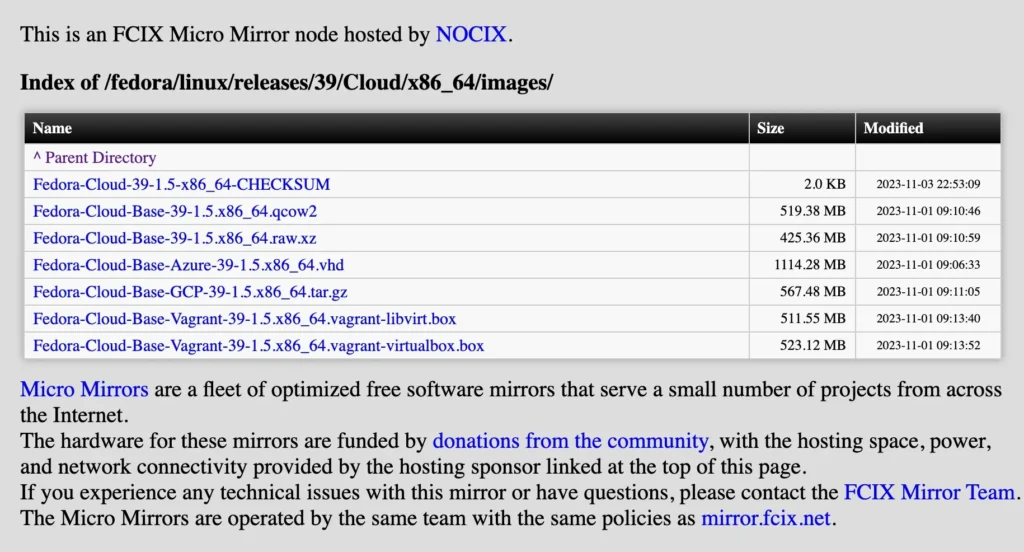
For example, the image I will use in the yaml definition below is: “https://download.fedoraproject.org/pub/fedora/linux/releases/39/Cloud/x86_64/images/Fedora-Cloud-Base-39-1.5.x86_64.raw.xz”
If you want to use a Linux distro other than Fedora, CDI supports the raw and qcow2 image formats which are supported by qemu. See the qemu documentation for more details. Bootable ISO images can also be used and are treated like raw images. Images may be compressed with either the gz or xz format.
Modification #3 – PVC creation. The default storage used in the KubeVirt lab example will create a raw block device that will cause permission errors with the CDI importer pod. You need to change the “storage” spec definition to “pvc” to specify a PVC creation as shown in the example from the CDI Importer GitHub page.
Section labelled: “Import the registry image into a Data volume”
					apiVersion: cdi.kubevirt.io/v1beta1
kind: DataVolume
metadata:
  name: registry-image-datavolume
spec:
  source:
    registry:
      url: "docker://kubevirt/fedora-cloud-registry-disk-demo"
  pvc:
    accessModes:
      - ReadWriteOnce
    resources:
      requests:
        storage: 5Gi
Also, check the file size of the image you are specifying in the DataVolume yaml. The storage request needs to be larger than the expanded file size of the image. In the example above, xz is a compressed file format. If you download and expand that image, the resulting file is 5.37GB so we will need to specify a 6-10GB disk size.
Example DataVolume file:
Here is the full DataVolume yaml example with all 3 modifications applied:
					% cat dv_fedora_pvc.yml
apiVersion: cdi.kubevirt.io/v1beta1
kind: DataVolume
metadata:
  name: "fedora"
  annotations:
    cdi.kubevirt.io/storage.bind.immediate.requested: ""
spec:
  pvc:
    accessModes:
      - ReadWriteOnce
    resources:
      requests:
        storage: 10Gi
  source:
    http:
      url: "https://download.fedoraproject.org/pub/fedora/linux/releases/39/Cloud/x86_64/images/Fedora-Cloud-Base-39-1.5.x86_64.raw.xz"
%
% kubectl create ns vm-demo-fedora
% kubectl -n vm-demo-fedora create -f dv_fedora_pvc.yml
% kubectl -n vm-demo-fedora get all
Warning: kubevirt.io/v1 VirtualMachineInstancePresets is now deprecated and will be removed in v2.
NAME                                                      READY   STATUS    RESTARTS   AGE
pod/importer-prime-bbfaf00a-b2f5-443e-bf54-cb41a015a484   1/1     Running   0          47s

NAME                                PHASE              PROGRESS   RESTARTS   AGE
datavolume.cdi.kubevirt.io/fedora   ImportInProgress   22.21%                50s
% kubectl -n vm-demo-fedora get pvc
NAME                                         STATUS    VOLUME                                     CAPACITY   ACCESS MODES   STORAGECLASS   AGE
fedora                                       Pending                                                                        default        55s
prime-bbfaf00a-b2f5-443e-bf54-cb41a015a484   Bound     pvc-7d327859-e3b2-49ec-9eb9-c42c467ae0a8   5Gi        RWO            default        55s

...(after some time has passed for import operation to complete)

% kubectl -n vm-demo-fedora get all
Warning: kubevirt.io/v1 VirtualMachineInstancePresets is now deprecated and will be removed in v2.
NAME                                PHASE       PROGRESS   RESTARTS   AGE
datavolume.cdi.kubevirt.io/fedora   Succeeded   100.0%                3m44s
% kubectl -n vm-demo-fedora get pvc
NAME     STATUS   VOLUME                                     CAPACITY   ACCESS MODES   STORAGECLASS   AGE
fedora   Bound    pvc-307c75d7-b97a-4b62-89de-9037f6c4eacc   10Gi       RWO            default        4m1s
Launch VM using PVC created from imported Disk Image:
Now, let’s create a Virtual Machine making use of it.
wget https://kubevirt.io/labs/manifests/vm1_pvc.yml
Edit the file vm1_pvc.yml and replace the ssh public key with your own key (cat ~/.ssh/id_rsa.pub).
					% wget https://kubevirt.io/labs/manifests/vm1_pvc.yml
--2023-11-21 12:55:00--  https://kubevirt.io/labs/manifests/vm1_pvc.yml
Resolving kubevirt.io (kubevirt.io)... 185.199.111.153
Connecting to kubevirt.io (kubevirt.io)|185.199.111.153|:443... connected.
HTTP request sent, awaiting response... 200 OK
Length: 1012 [text/yaml]
Saving to: ‘vm1_pvc.yml’

vm1_pvc.yml                                 100%[=========================================================================================>]    1012  --.-KB/s    in 0s

2023-11-21 12:55:01 (30.2 MB/s) - ‘vm1_pvc.yml’ saved [1012/1012]

% cat vm1_pvc.yml
apiVersion: kubevirt.io/v1
kind: VirtualMachine
metadata:
  creationTimestamp: 2018-07-04T15:03:08Z
  generation: 1
  labels:
    kubevirt.io/os: linux
  name: vm1
spec:
  running: true
  template:
    metadata:
      creationTimestamp: null
      labels:
        kubevirt.io/domain: vm1
    spec:
      domain:
        cpu:
          cores: 2
        devices:
          disks:
          - disk:
              bus: virtio
            name: disk0
          - cdrom:
              bus: sata
              readonly: true
            name: cloudinitdisk
        machine:
          type: q35
        resources:
          requests:
            memory: 1024M
      volumes:
      - dataVolume:
          name: fedora
        name: disk0
      - cloudInitNoCloud:
          userData: |
            #cloud-config
            hostname: vm1
            ssh_pwauth: True
            disable_root: false
            ssh_authorized_keys:
            - ssh-rsa YOUR_SSH_PUB_KEY_HERE
        name: cloudinitdisk

% kubectl -n vm-demo-fedora create -f vm1_pvc.yml
virtualmachine.kubevirt.io/vm1 created
Check the status of the created VM:
					% kubectl -n vm-demo-fedora get vm
NAME   AGE     STATUS    READY
vm1    2m29s   Running   True

% kubectl -n vm-demo-fedora get all
Warning: kubevirt.io/v1 VirtualMachineInstancePresets is now deprecated and will be removed in v2.
NAME                          READY   STATUS    RESTARTS   AGE
pod/virt-launcher-vm1-2dfhh   2/2     Running   0          2m33s

NAME                                     AGE     PHASE     IP            NODENAME                         READY
virtualmachineinstance.kubevirt.io/vm1   2m34s   Running   10.244.3.11   aks-nested-18367827-vmss000006   True

NAME                             AGE     STATUS    READY
virtualmachine.kubevirt.io/vm1   2m35s   Running   True

NAME                                PHASE       PROGRESS   RESTARTS   AGE
datavolume.cdi.kubevirt.io/fedora   Succeeded   100.0%                11m

% kubectl -n vm-demo-fedora get pvc
NAME     STATUS   VOLUME                                     CAPACITY   ACCESS MODES   STORAGECLASS   AGE
fedora   Bound    pvc-307c75d7-b97a-4b62-89de-9037f6c4eacc   10Gi       RWO            default        11m
Finally, login to the VM using virtctl’s ssh function which will use your computer’s ssh key that you injected into the VM cloud-init definition:
					% virtctl -n vm-demo-fedora ssh --local-ssh fedora@vm1
The authenticity of host 'vmi/vm1.jeff-vm (<no hostip for proxy command>)' can't be established.
ED25519 key fingerprint is SHA256:PkoO9Ik1qIM1Zw/Sg2KT2MMaxjsAzldo9GqCl87U+qs.
This key is not known by any other names.
Are you sure you want to continue connecting (yes/no/[fingerprint])? yes
Warning: Permanently added 'vmi/vm1.jeff-vm' (ED25519) to the list of known hosts.
[fedora@vm1 ~]$
[fedora@vm1 ~]$
[fedora@vm1 ~]$ pwd
/home/fedora
Combining DataVolume and VirtualMachine yaml into one VM creation workflow:
You can combine the two of these resource types into one yaml file so that the image import process happens when the VM is created. This is known as a “DataVolume VM”.
Reference documents:
https://kubevirt.io/user-guide/virtual_machines/disks_and_volumes/#datavolume
https://kubevirt.io/2019/How-To-Import-VM-into-Kubevirt.html
Here is an example with the modifications discussed above applied. This will deploy a new Ubuntu-22.04 VM from one file:
NOTE – Ubuntu Cloud VM images have a bug where MAC addresses of the VM NICs change between reboots and causes ssh into the VMs to stop working. A work around for this is to statically set the MAC address in your VM definition as shown below.
					% cat vm2_dv_pvc.yml
apiVersion: kubevirt.io/v1
kind: VirtualMachine
metadata:
  labels:
    kubevirt.io/vm: vm2-ubuntu
  name: vm2-ubuntu
spec:
  running: true
  template:
    metadata:
      labels:
        kubevirt.io/vm: vm2-ubuntu
    spec:
      domain:
        cpu:
          cores: 2
        devices:
          disks:
          - disk:
              bus: virtio
            name: disk0
          - cdrom:
              bus: sata
              readonly: true
            name: cloudinitdisk
        interfaces:
          - macAddress: '02:64:45:00:00:00'
            masquerade: {}
            model: virtio
            name: default
        machine:
          type: q35
        resources:
          requests:
            memory: 1024M
      networks:
        - name: default
          pod: {}
      volumes:
      - dataVolume:
          name: ubuntu-22.04
        name: disk0
      - cloudInitNoCloud:
          userData: |
            #cloud-config
            hostname: vm2-ubuntu
            ssh_pwauth: True
            disable_root: false
            ssh_authorized_keys:
            - ssh-rsa AAA...
        name: cloudinitdisk
  dataVolumeTemplates:
  - metadata:
      name: ubuntu-22.04
      annotations:
        cdi.kubevirt.io/storage.bind.immediate.requested: ""
    spec:
      pvc:
        accessModes:
        - ReadWriteOnce
        resources:
          requests:
            storage: 5Gi
      source:
        http:
          url: https://cloud-images.ubuntu.com/releases/22.04/release/ubuntu-22.04-server-cloudimg-amd64.img
Apply the file to a new namespace:
					% kubectl create ns vm-demo-ubuntu
% kubectl -n vm-demo-ubuntu apply -f vm2_dv_pvc.yml
Check the status of the VM creation:
					% kubectl -n vm-demo-ubuntu get all
Warning: kubevirt.io/v1 VirtualMachineInstancePresets is now deprecated and will be removed in v2.
NAME                                                      READY   STATUS              RESTARTS   AGE
pod/importer-prime-86041579-7e99-461f-a5fb-adfc69b1bc1c   0/1     ContainerCreating   0          7s

NAME                                    AGE   STATUS         READY
virtualmachine.kubevirt.io/vm2-ubuntu   8s    Provisioning   False

NAME                                      PHASE             PROGRESS   RESTARTS   AGE
datavolume.cdi.kubevirt.io/ubuntu-22.04   ImportScheduled   N/A                   8s
% kubectl -n vm-demo-ubuntu get pvc
NAME                                         STATUS    VOLUME                                     CAPACITY   ACCESS MODES   STORAGECLASS   AGE
prime-86041579-7e99-461f-a5fb-adfc69b1bc1c   Bound     pvc-49cde6da-8820-4447-a64f-e923a70136b0   5Gi        RWO            default        16s
ubuntu-22.04                                 Pending                                                                        default        16s
% kubectl -n vm-demo-ubuntu get dv
NAME           PHASE              PROGRESS   RESTARTS   AGE
ubuntu-22.04   ImportInProgress   N/A        1          54s


% kubectl -n vm-demo-ubuntu get all
Warning: kubevirt.io/v1 VirtualMachineInstancePresets is now deprecated and will be removed in v2.
NAME                                                      READY   STATUS    RESTARTS      AGE
pod/importer-prime-86041579-7e99-461f-a5fb-adfc69b1bc1c   1/1     Running   1 (31s ago)   54s

NAME                                    AGE   STATUS         READY
virtualmachine.kubevirt.io/vm2-ubuntu   75s   Provisioning   False

NAME                                      PHASE              PROGRESS   RESTARTS   AGE
datavolume.cdi.kubevirt.io/ubuntu-22.04   ImportInProgress   62.02%     1          76s


% kubectl -n vm-demo-ubuntu get all
Warning: kubevirt.io/v1 VirtualMachineInstancePresets is now deprecated and will be removed in v2.
NAME                                                      READY   STATUS      RESTARTS   AGE
pod/importer-prime-86041579-7e99-461f-a5fb-adfc69b1bc1c   0/1     Completed   1          68s

NAME                                    AGE   STATUS     READY
virtualmachine.kubevirt.io/vm2-ubuntu   90s   Starting   False

NAME                                            AGE   PHASE        IP    NODENAME   READY
virtualmachineinstance.kubevirt.io/vm2-ubuntu   1s    Scheduling                    False

NAME                                      PHASE       PROGRESS   RESTARTS   AGE
datavolume.cdi.kubevirt.io/ubuntu-22.04   Succeeded   100.0%     1          91s


% kubectl -n vm-demo-ubuntu get all
Warning: kubevirt.io/v1 VirtualMachineInstancePresets is now deprecated and will be removed in v2.
NAME                                 READY   STATUS              RESTARTS   AGE
pod/virt-launcher-vm2-ubuntu-99xsc   0/2     ContainerCreating   0          7s

NAME                                    AGE   STATUS     READY
virtualmachine.kubevirt.io/vm2-ubuntu   96s   Starting   False

NAME                                            AGE   PHASE        IP    NODENAME   READY
virtualmachineinstance.kubevirt.io/vm2-ubuntu   7s    Scheduling                    False

NAME                                      PHASE       PROGRESS   RESTARTS   AGE
datavolume.cdi.kubevirt.io/ubuntu-22.04   Succeeded   100.0%     1          97s
% kubectl -n vm-demo-ubuntu get pvc
NAME           STATUS   VOLUME                                     CAPACITY   ACCESS MODES   STORAGECLASS   AGE
ubuntu-22.04   Bound    pvc-49cde6da-8820-4447-a64f-e923a70136b0   5Gi        RWO            default        101s
% kubectl -n vm-demo-ubuntu get vm
NAME         AGE    STATUS     READY
vm2-ubuntu   105s   Starting   False
When the VM is starting up, as shown above, you can watch the startup by entering the console with the command: virtctl console vm-name
virtctl -n vm-demo-ubuntu console vm2-ubuntu
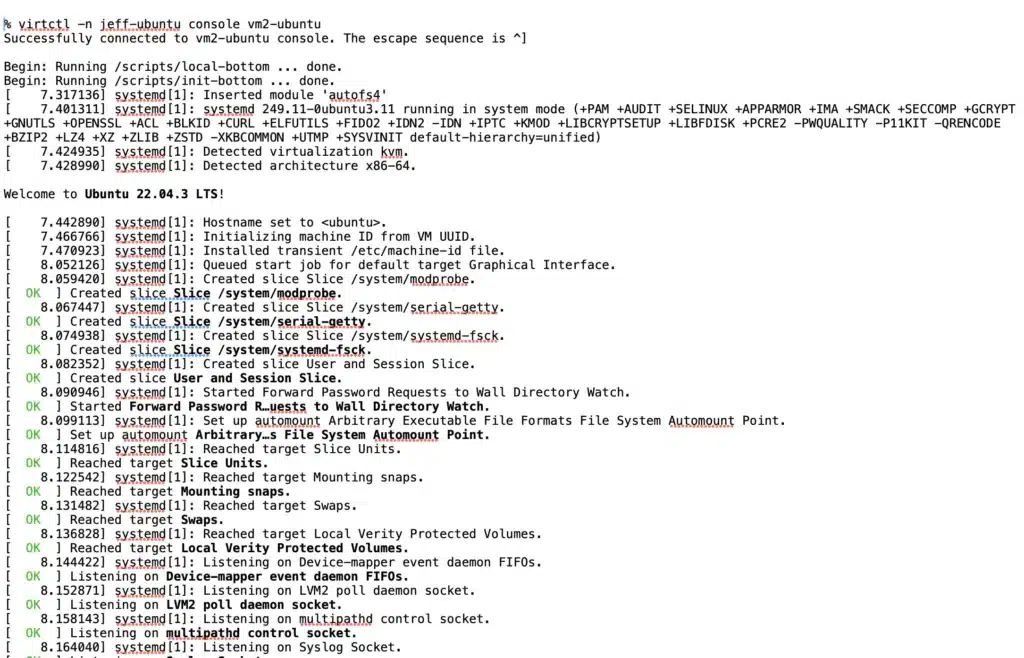
For cloud images, like the Ubuntu one used in the example above, you cannot use that same console to login because there is no user password set unless it’s set in the cloud-init config. In the example above, the more secure method of embedding a local SSH key using cloud-init was used instead so you need to login using a separate console command:
“virctl ssh –local-ssh”:
					% virtctl -n vm-demo-ubuntu ssh --local-ssh ubuntu@vm2-ubuntu

The authenticity of host 'vmi/vm2-ubuntu.jeff-ubuntu (<no hostip for proxy command>)' can't be established.
ED25519 key fingerprint is SHA256:zf/Tn+7cj6FSBGNWJkYrXFEBETOveq32EuR+mK4lwk8.
This key is not known by any other names.
Are you sure you want to continue connecting (yes/no/[fingerprint])? yes
Warning: Permanently added 'vmi/vm2-ubuntu.jeff-ubuntu' (ED25519) to the list of known hosts.

Welcome to Ubuntu 22.04.3 LTS (GNU/Linux 5.15.0-87-generic x86_64)

 * Documentation:  https://help.ubuntu.com
 * Management:     https://landscape.canonical.com
 * Support:        https://ubuntu.com/advantage

  System information as of Tue Nov 28 19:18:44 UTC 2023

  System load:  0.0               Processes:               115
  Usage of /:   33.4% of 4.24GB   Users logged in:         0
  Memory usage: 21%               IPv4 address for enp1s0: 10.244.2.6
  Swap usage:   0%

Expanded Security Maintenance for Applications is not enabled.

0 updates can be applied immediately.

Enable ESM Apps to receive additional future security updates.
See https://ubuntu.com/esm or run: sudo pro status


The list of available updates is more than a week old.
To check for new updates run: sudo apt update


The programs included with the Ubuntu system are free software;
the exact distribution terms for each program are described in the
individual files in /usr/share/doc/*/copyright.

Ubuntu comes with ABSOLUTELY NO WARRANTY, to the extent permitted by
applicable law.

To run a command as administrator (user "root"), use "sudo <command>".
See "man sudo_root" for details.

ubuntu@vm2-ubuntu:~$
This concludes the two methods for creating VMs using KubeVirt.
Backing up VMs using Trilio
Next we would like to show how Trilio can be used to backup and restore these VMs.
For demonstration purposes, we will write some stateful data into the new VM created in the first example.
					[fedora@vm1 ~]$ echo 'This is some stateful data created for demo purposes.' > my-data
[fedora@vm1 ~]$ ls
my-data
[fedora@vm1 ~]$ cat my-data
This is some stateful data created for demo purposes.
[fedora@vm1 ~]$
Follow the Trilio documentation to install Trilio into your AKS cluster:
https://docs.trilio.io/kubernetes/getting-started-3/upstream-kubernetes
These instructions include creating a Backup Target which will be used to store your backups. This backup target will be used in the next step.
Now you are ready to create backups of your VMs. You can login to the UI and use the Namespace discovery to find the namespace with the VM created in the first VM example above in the “vm-demo-fedora” namespace. Click the “Create Backup” button on the right side.
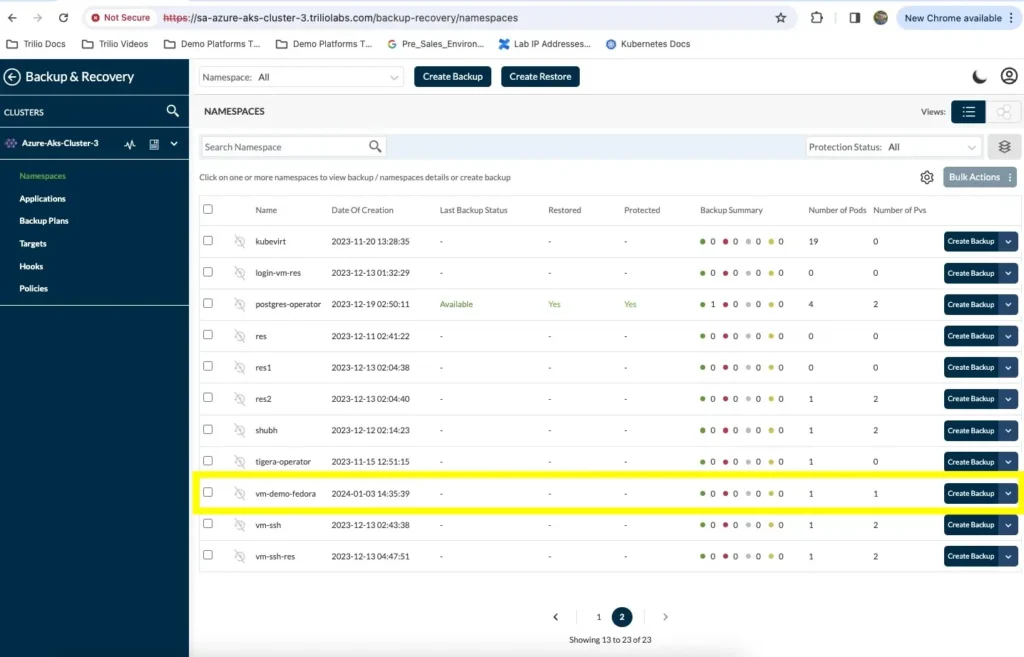
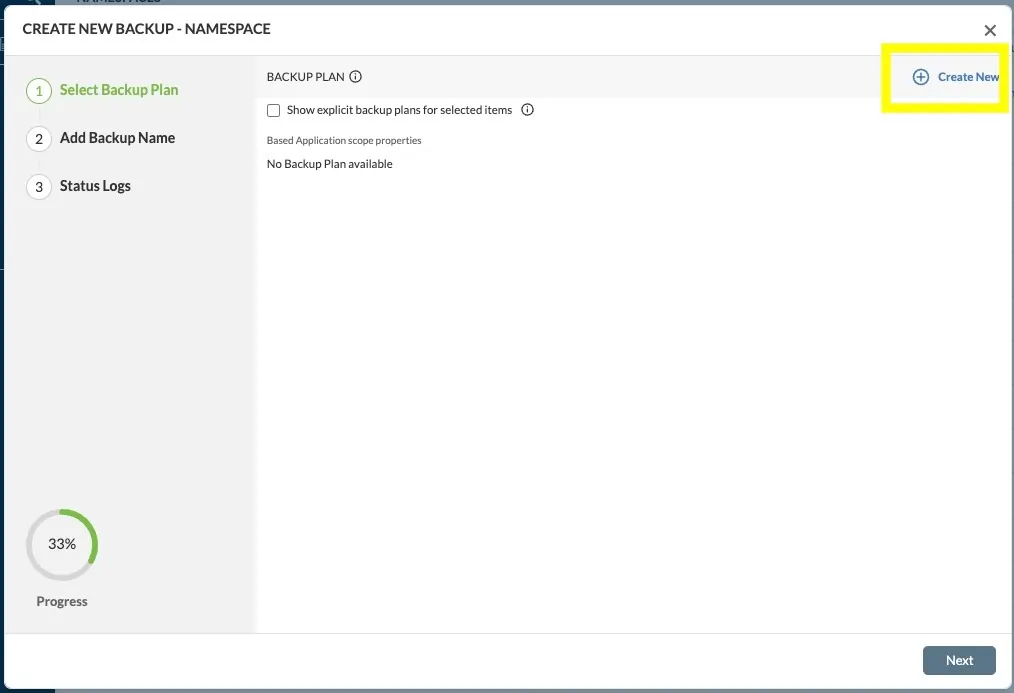
The backup creation wizard will begin. The first question will ask to select or create a Backup Plan for the backup. If this is your first backup, then you will need to first create the Backup Plan by clicking “Create New” on the upper right.
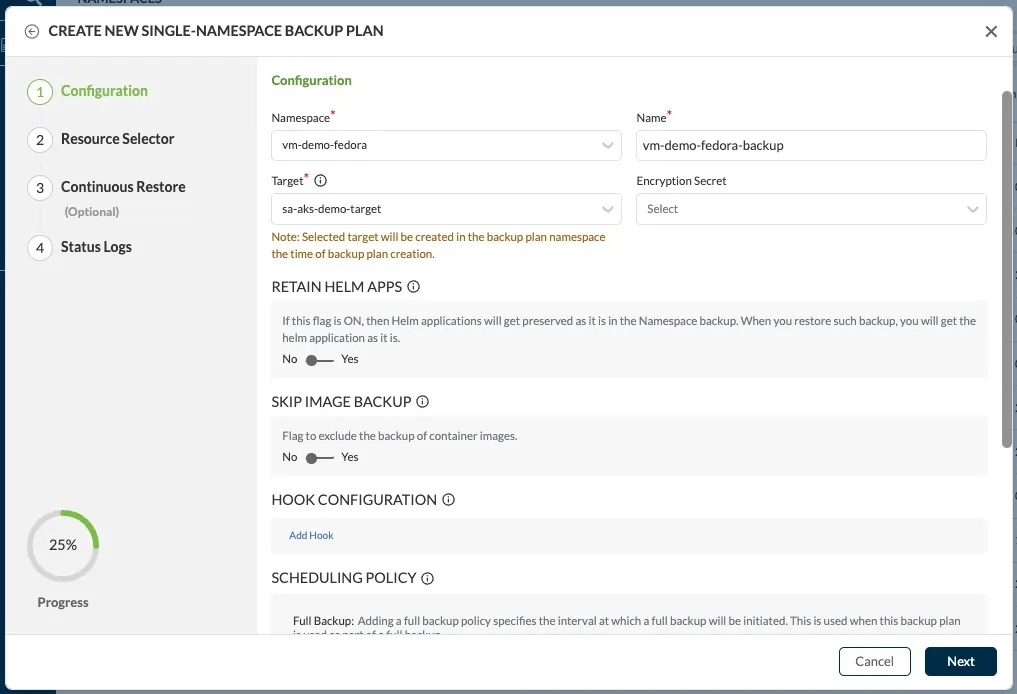
In the next screen you will need to fill a name for the Backup Plan, i.e. “vm-demo-fedora-backup” and under “Target” you will select the Backup Target you created in an earlier step. It is fine to leave all other values at their defaults, click Next.
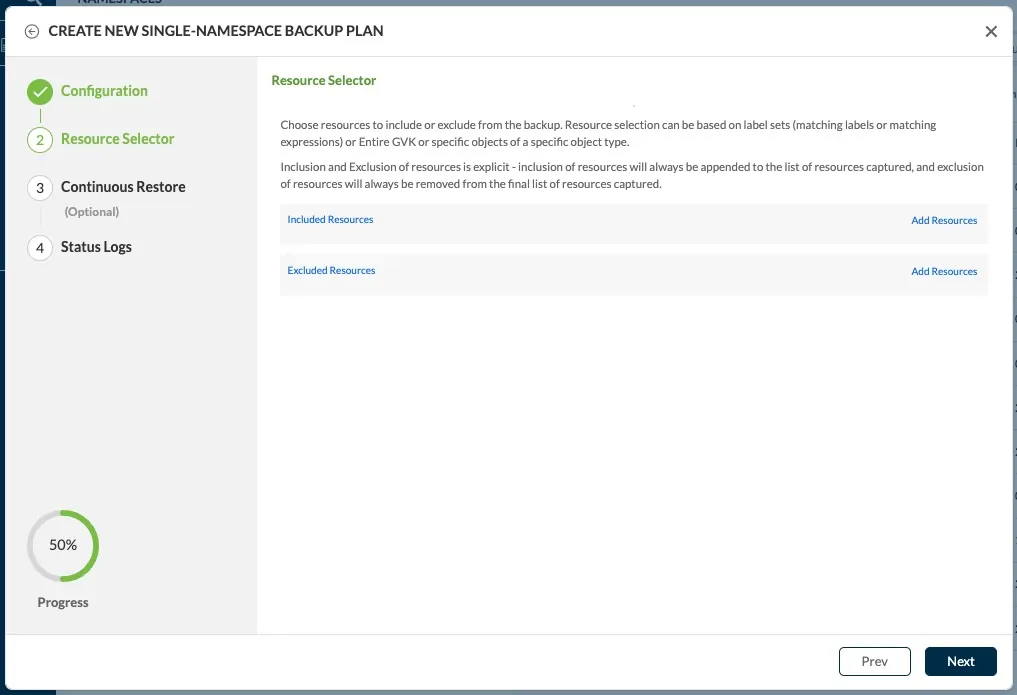
On the next screen click “Next”
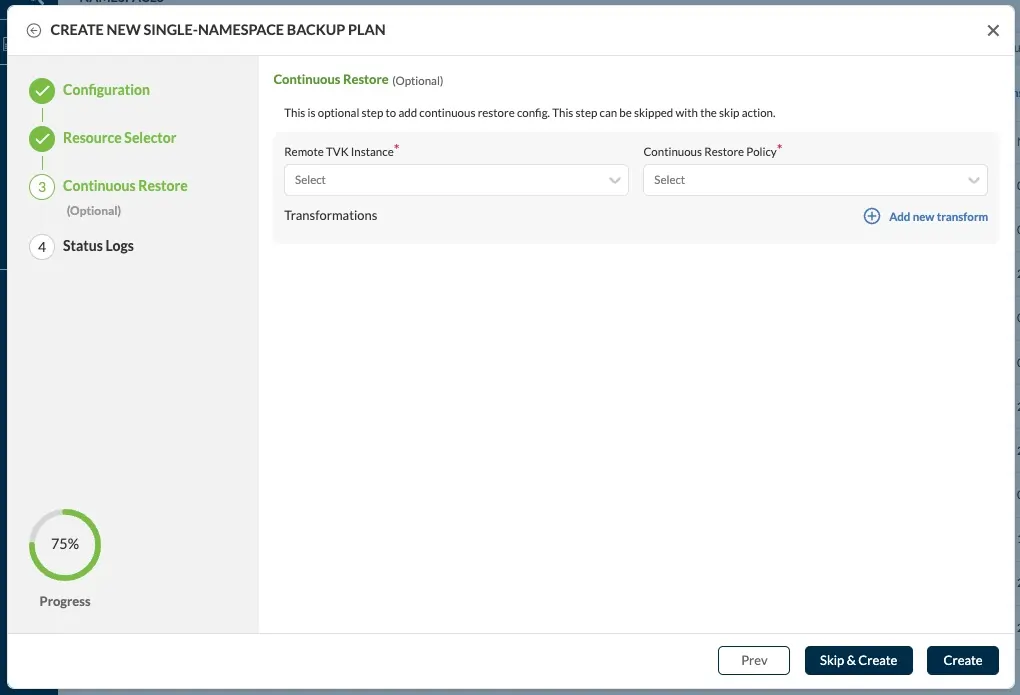
On the next screen click “Skip & Create”
On the next screen click “Finish”
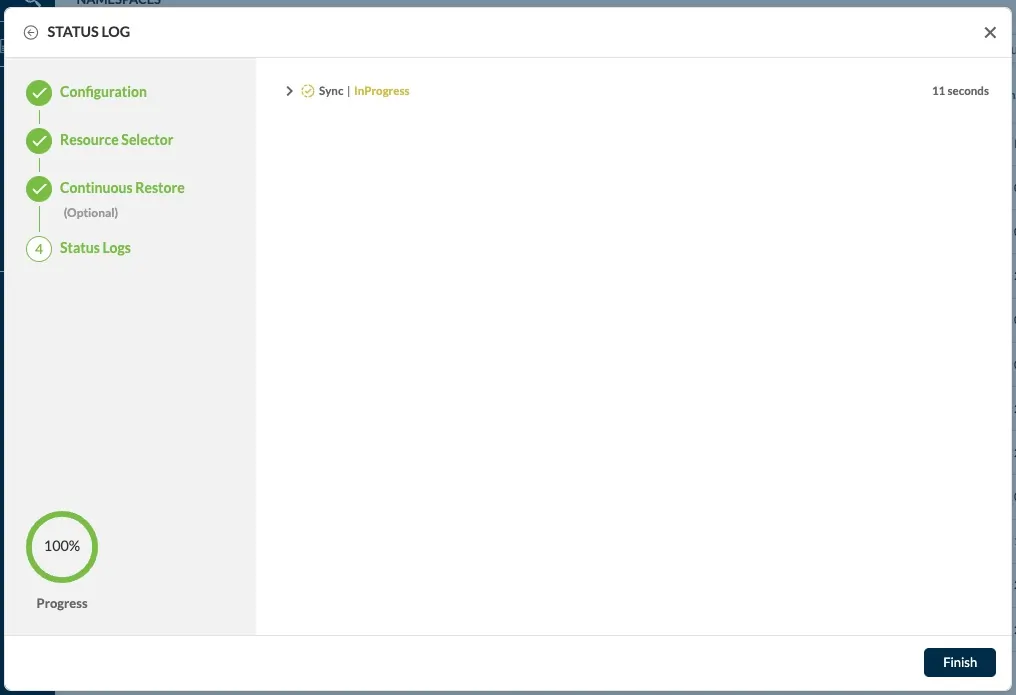
Now that the Backup Plan has been created, you will see it is now selected on the Backup Plan selection screen. Click “Next”.
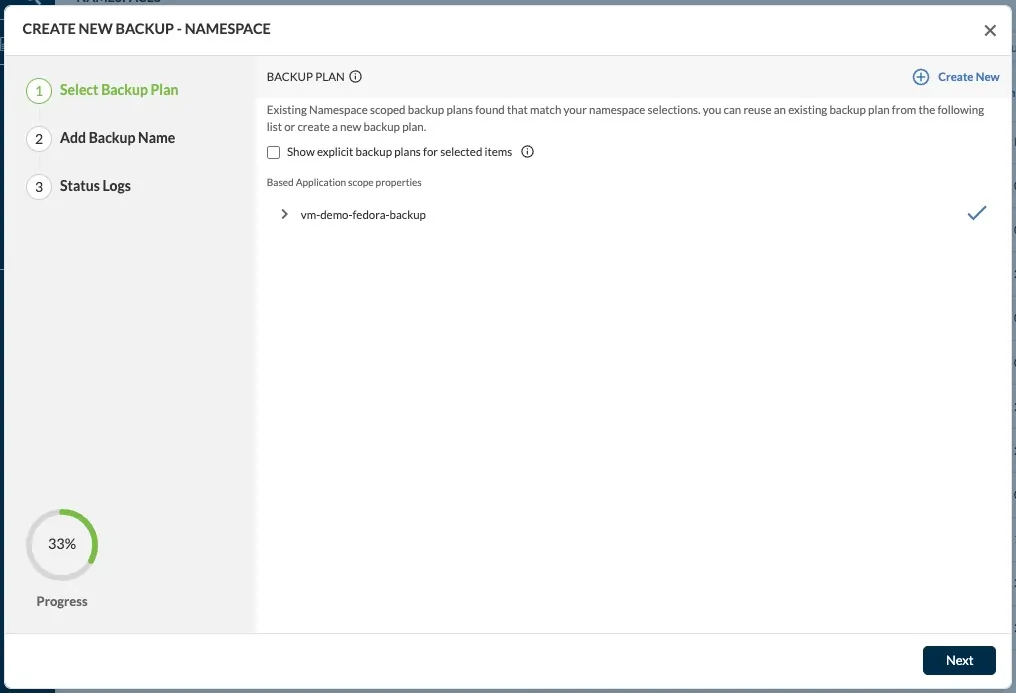
On the next screen, give the Backup a name, i.e. “vm-demo-fedora-backup-1” and click “Create Backup”.

On the next screen, you can watch the progress of the backup in real-time or you can click “Finish” to exit the wizard at any time.
When the Backup is complete, you can view the Status Log for a successful backup.
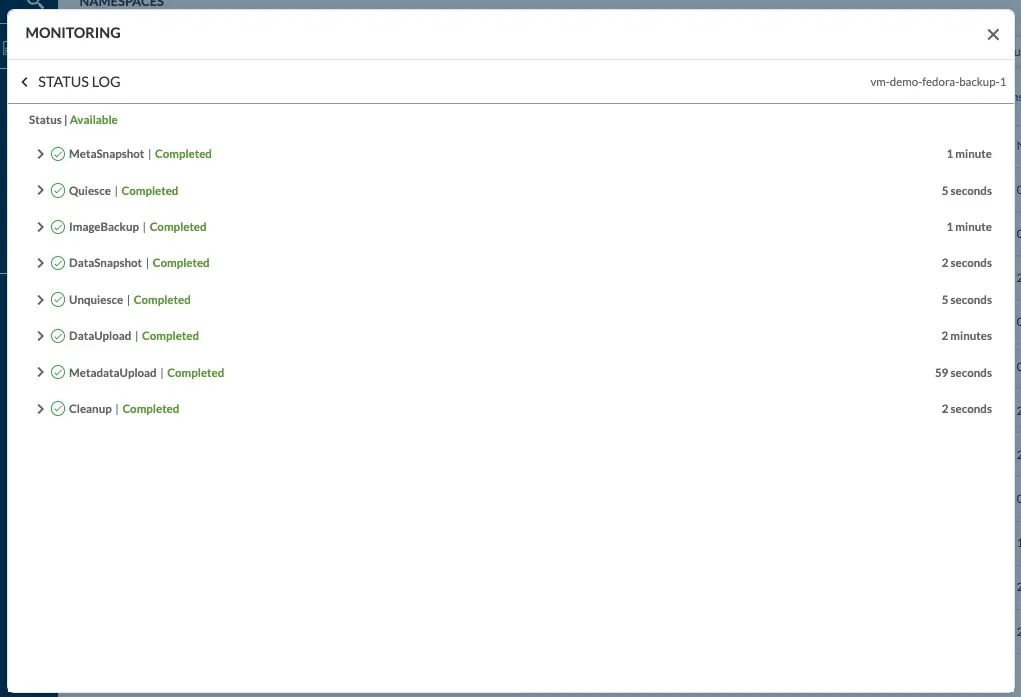
Restoring VMs using Trilio
Now that you have a good backup of the VM, you can use Trilio to restore this VM to a new namespace.
Let’s create a new namespace for the restore:
kubectl create ns vm-demo-fedora-restore
Now, let’s look for the backup and begin a restore. Use the same Namespace discovery window in the UI to find the orignal VMs namespace. On the right-side, click drop down arrow next to “Create Backup” to access more options. Choose “View Backup & Restore Summary”.

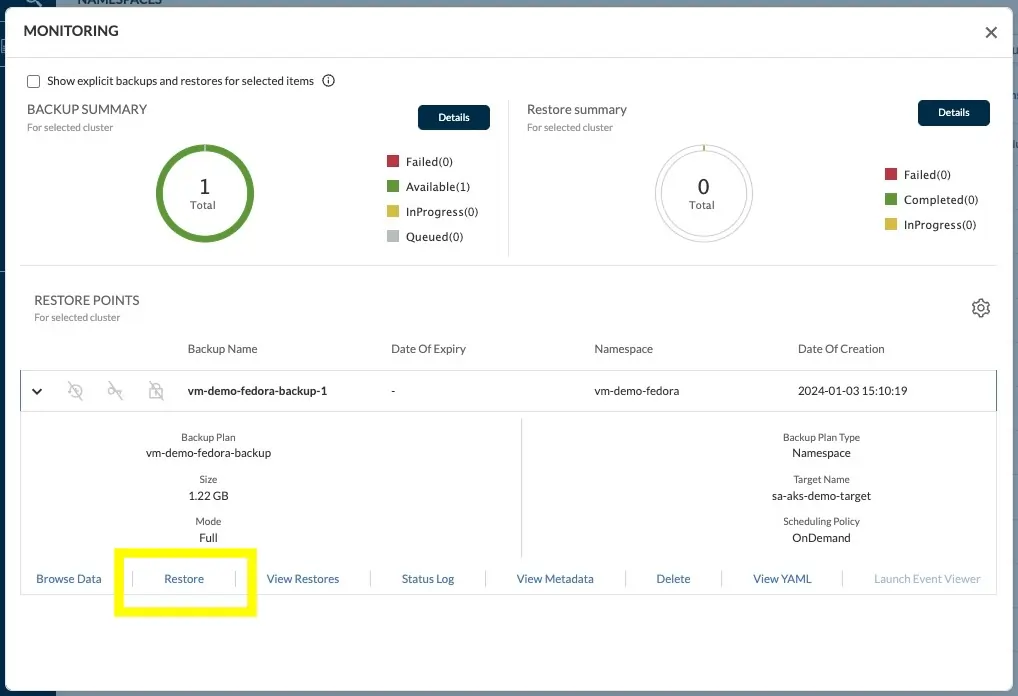
The next screen that pops-up will show the Monitoring panel which lists all backup points for this namespace. Click the down arrow on the left side to access more options for the backup.
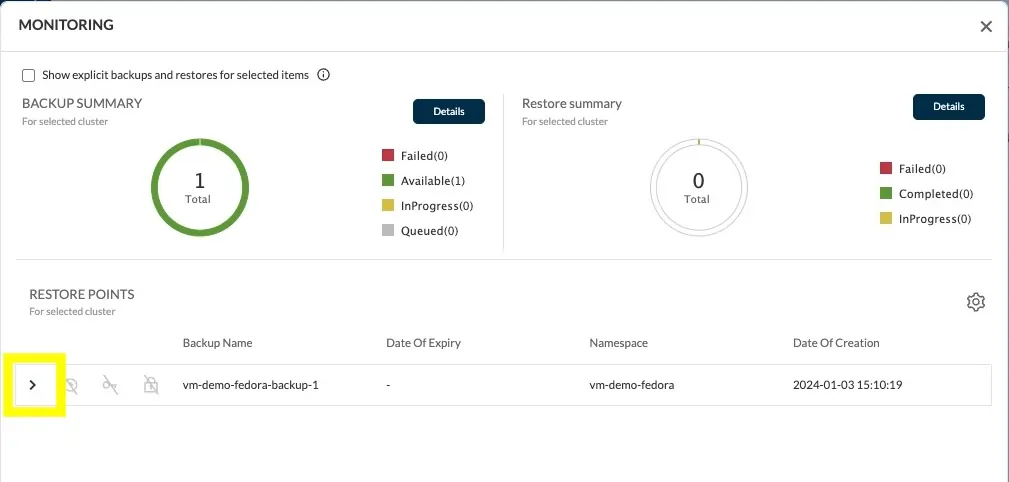
In the details panel, click “Restore” to bring up the Restore wizard.
Enter a name for the restore, i.e. “restore-1” and select the namesapce to restore to, “vm-demo-fedora-restore”. Then click “Next”.
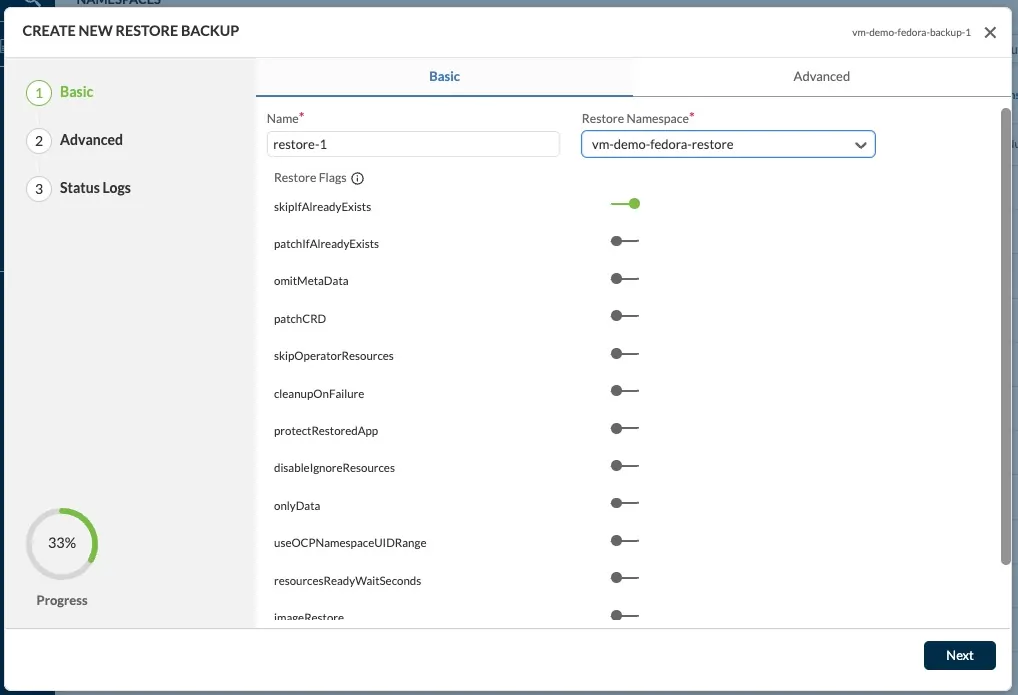
On the next screen, use all the default values and just click “Create”.

This will begin the restore process.

Password enabled VMs
It is best practice to use ssh-keys to securely access your VMs but using a simple password is easier for testing can use the console to login to the VM in case ssh is not working.
Here is the cloud init pattern for setting a login password:
					volumes:
      - name: disk0
        persistentVolumeClaim:
          claimName: fedora
      - cloudInitNoCloud:
          userData: |
            #cloud-config
            hostname: vm1
            ssh_pwauth: True
            password: fedora
            chpasswd: { expire: False }
            disable_root: false
        name: cloudinitdisk